Scale every axis consistently
An inch is exactly 25.4 millimeters. Converting a model from inches to millimeters multiplies every linear coordinate by 25.4. Surface area scales by the square of a linear factor; volume scales by the cube.
For example, a 2-inch cube has an edge length of 50.8 mm, not 2 mm. Its volume is 2³ = 8 cubic inches, or 50.8³ = 131,096.512 cubic millimeters. These are the same geometric volume expressed in different units.
File conventions matter
A core 3MF model declares its model unit, while GLB uses meters under the glTF 2.0 specification. Standard STL and OBJ meshes do not enforce a universal length unit. Import programs may guess, prompt you or use defaults.
When exchanging a part, write the intended physical dimensions into a readme, product page or project notes. It is easier to catch an obvious mismatch using a simple rectangular sample than by inspecting a complex organic form.
Measure after each conversion
Before exporting, note the source model’s width, depth and height. After import, compare the bounding box to those known values and verify axis orientation. Some coordinate transforms change which component is called “height” without altering the shape.
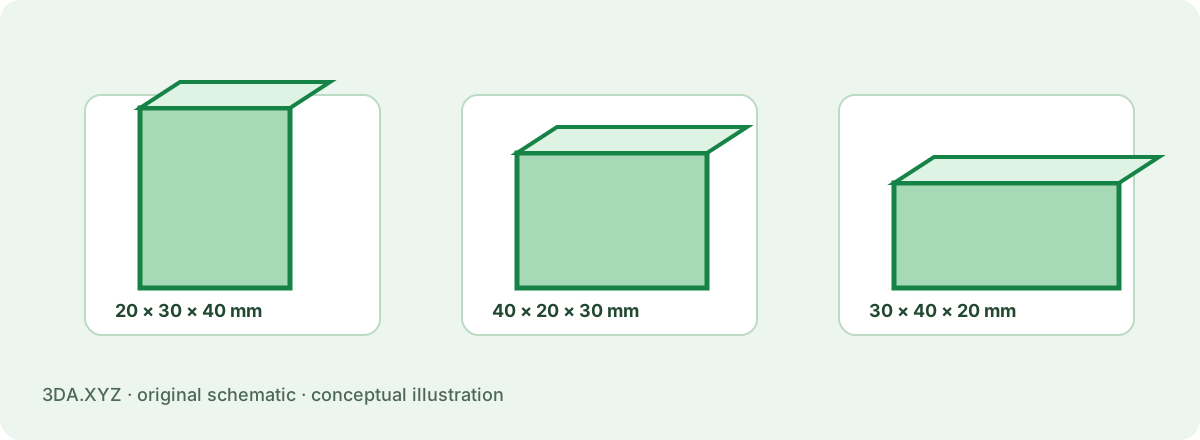
Use the 3DA unit converter to compute dimensions and scaling factors without uploading a file. Use the unequal-sided reference block to expose accidental axis swaps.
Worked example
Converting 20 × 30 × 40 mm to inches yields roughly 0.7874 × 1.1811 × 1.5748 in. Re-importing at 20 × 30 × 40 inches is a 25.4× error along each axis.
Important limitation
Do not change just the unit label while leaving geometry coordinates untouched unless the destination program also performs the correct rescaling.
Practical checklist
- Record original bounding box
- Identify source units
- Apply the exact conversion factor
- Confirm axis order and sign
- Recheck extents in destination software
Common questions
Why is my STL tiny?
A receiving app may have treated millimeter coordinates as meters or made another unit assumption.
Does scaling change triangle count?
Uniform coordinate scaling changes dimensions, not the number of faces by itself.
Primary references
- NIST — SI units reference
- Khronos Group — glTF 2.0 specification
- 3MF Consortium — core format specification
External specifications provide format or process context; the examples and calculations here are original 3DA explanations.
Diagnose a scale error from the ratio
| Off by | Probable cause |
|---|---|
| 25.4× (too small) | Inches read as millimetres |
| 25.4× (too large) | Millimetres read as inches |
| 10× | Centimetres vs millimetres |
| 1,000× | Metres vs millimetres (common with GLB and Blender defaults) |
| 2.54× | Inches vs centimetres |
The Studio lets you set File units before opening an STL, OBJ or PLY, and shows sizes in mm, cm or inches. GLB is always metres and 3MF declares its unit, so those open at the right size automatically.